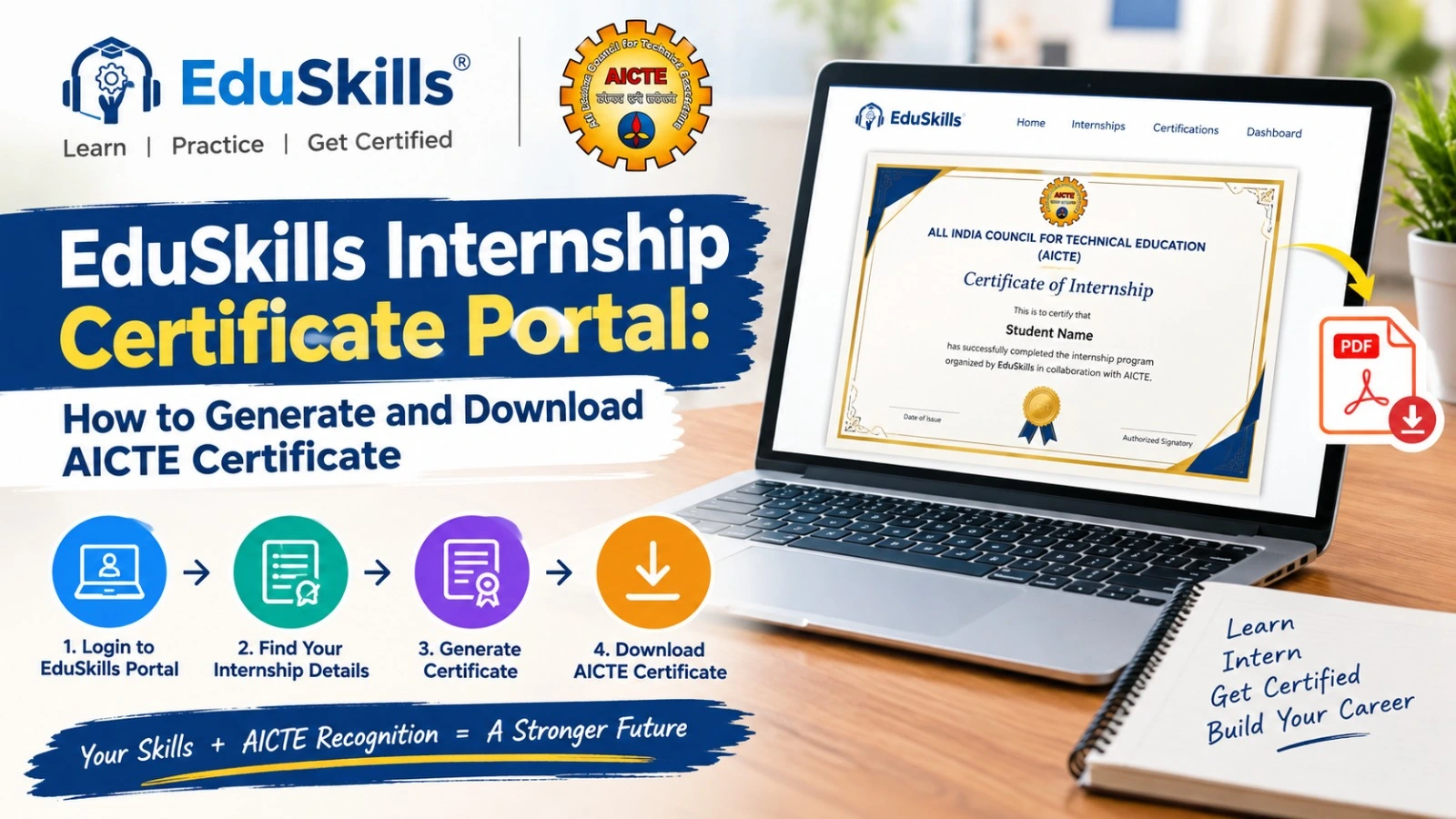
EduSkills Internship Certificate Portal: How to Generate and Download Your AICTE Certificate
Students who have completed an eligible EduSkills virtual internship may be able to generate and download their internship certificate through the AICTE–EduSkills Internship Certificate Portal. The portal allows students to enter their registered email address, select the relevant internship domain, and check whether their certificate is available.
This guide explains how to access the portal, download your certificate, check certificate details, and troubleshoot common problems.
EduSkills Internship Certificate Portal: Overview
The AICTE–EduSkills certificate portal is an online facility for students looking for their internship certificates. Students should use the email address registered with the AICTE internship portal and select the appropriate internship domain.
| Particulars | Details |
| Portal name | AICTE–EduSkills Internship Certificate Portal |
| Main purpose | Generate and download an available internship certificate |
| Official certificate portal | https://aictecert.eduskillsfoundation.org/pages/home/ |
| Information required | Registered email address and internship domain |
| Certificate availability | Depends on the student’s record and eligibility |
| Official EduSkills internship page | https://eduskillsfoundation.org/internshipreg/ |
| AICTE internship listing | https://internship.aicte-india.org/internships/eduskills |
Students should check the official portal for the latest instructions and available options.
How to Download an EduSkills Internship Certificate
Follow these steps to check whether your certificate is available.
Step 1: Open the Official Certificate Portal
Visit the official AICTE–EduSkills Internship Certificate Portal:
https://aictecert.eduskillsfoundation.org/pages/home/
Check that you are using the correct website before entering your information.
Step 2: Enter Your Registered Email Address
Enter the email address you used when registering for the AICTE internship. Make sure the spelling is correct and that you are using the same email account associated with your internship record.
Using a different email address may prevent the portal from locating your certificate.
Step 3: Select Your Internship Domain
Choose the internship domain you completed from the options available on the portal. Select the correct domain rather than choosing a similar-sounding option.
If you completed more than one internship, check the relevant domain for each certificate you want to retrieve.
Step 4: Generate the Certificate
After entering your registered email address and selecting the internship domain, click the Generate Certificate button.
The portal will check whether a matching certificate is available. Certificate generation may not be possible if your details do not match an eligible record.
Step 5: Download and Save Your Certificate
If the certificate is available, follow the portal’s instructions to download it. Save the file to your device and keep a backup for future use.
Open the downloaded certificate to ensure that the document is readable and that the details are correct.
Details to Check on Your EduSkills Certificate
Before submitting your certificate to your college or using it for your records, review the information shown on the document.
Check the following details:
- Student name and spelling
- College or institute name, where displayed
- Internship domain or programme details
- Certificate identification number, if provided
- Issue date, if displayed
- Grade or completion status, if applicable
If you notice an error, contact the relevant EduSkills support team or programme coordinator for guidance. Do not edit the certificate yourself to change official information.
EduSkills Certificate Not Found? Try These Steps
Some students may not find a certificate when they use the portal. This does not automatically mean that their internship was invalid. The issue may relate to the information entered, the selected domain, or certificate availability.
1. Check Your Registered Email Address
Confirm that you entered the same email address used during internship registration. Check for spelling mistakes, extra spaces, or an alternative email account.
2. Verify the Internship Domain
Select the domain that matches your completed internship. If you completed multiple programmes, check the relevant option for each one.
3. Confirm Your Completion Status
Review the programme requirements and confirm that you completed the required activities. Depending on the internship, this may include learning modules, assessments, project submissions, or other completion requirements.
The exact requirements can differ by programme, so refer to the official instructions for your internship.
4. Try Again Later
If the portal does not respond or displays an error, try again after some time. You can also try a different browser or device.
5. Contact the Official Support Team
If the certificate remains unavailable, contact EduSkills through its official website or the contact details provided for your internship programme. Share the relevant registration information needed to investigate the issue, but never share passwords or one-time verification codes.
Official website: https://eduskillsfoundation.org/
Internship Certificate vs Course Completion Certificate
An internship certificate and a course completion certificate may represent different achievements.
An internship certificate generally documents participation in or completion of an internship programme, subject to its requirements. A course completion certificate usually records the completion of a particular course or learning module.
The exact meaning depends on the programme and the document issued. Students should check the certificate title and the official programme information before submitting it to a college, employer, or other organisation.
Frequently Asked Questions
1. Where can I download my AICTE–EduSkills internship certificate?
Visit the official certificate portal at https://aictecert.eduskillsfoundation.org/pages/home/ and follow the instructions to enter your registered email address and select your internship domain.
2. Which email address should I enter?
Use the email address registered with the AICTE internship portal for the relevant internship.
3. Why is my certificate not showing?
Possible reasons include an incorrect email address, a mismatched internship domain, an unavailable certificate record, or incomplete programme requirements. Verify your details and contact the official support team if the issue continues.
4. Can I download a certificate for every EduSkills internship?
Certificate availability depends on the specific programme, the student’s record, and the applicable completion requirements. Check the official portal for your internship.
5. Is the certificate portal free to access?
Check the official portal and the terms of your internship programme for current information about any applicable charges. Do not rely on unofficial websites that promise certificates in exchange for payment.
Important Information for Students
Use only official EduSkills and AICTE-related websites to check internship information and retrieve available certificates. Confirm the details on your certificate before submitting it, and contact the programme’s official support team if you encounter an issue.
Disclaimer: This article is for informational purposes only. It is independently written and is not an official AICTE or EduSkills publication. Portal instructions and certificate availability may change. Students should verify current information through the official websites.